Turn your ideas into printable activities.
Bingo, word search, crosswords and 9 more activities. Type your own words or use ready-made content, then export to PDF to print at home, at a party or anywhere you like.



12 activities in one app
Pick one, type your content and Wibblo builds the worksheet for you.
Games
-
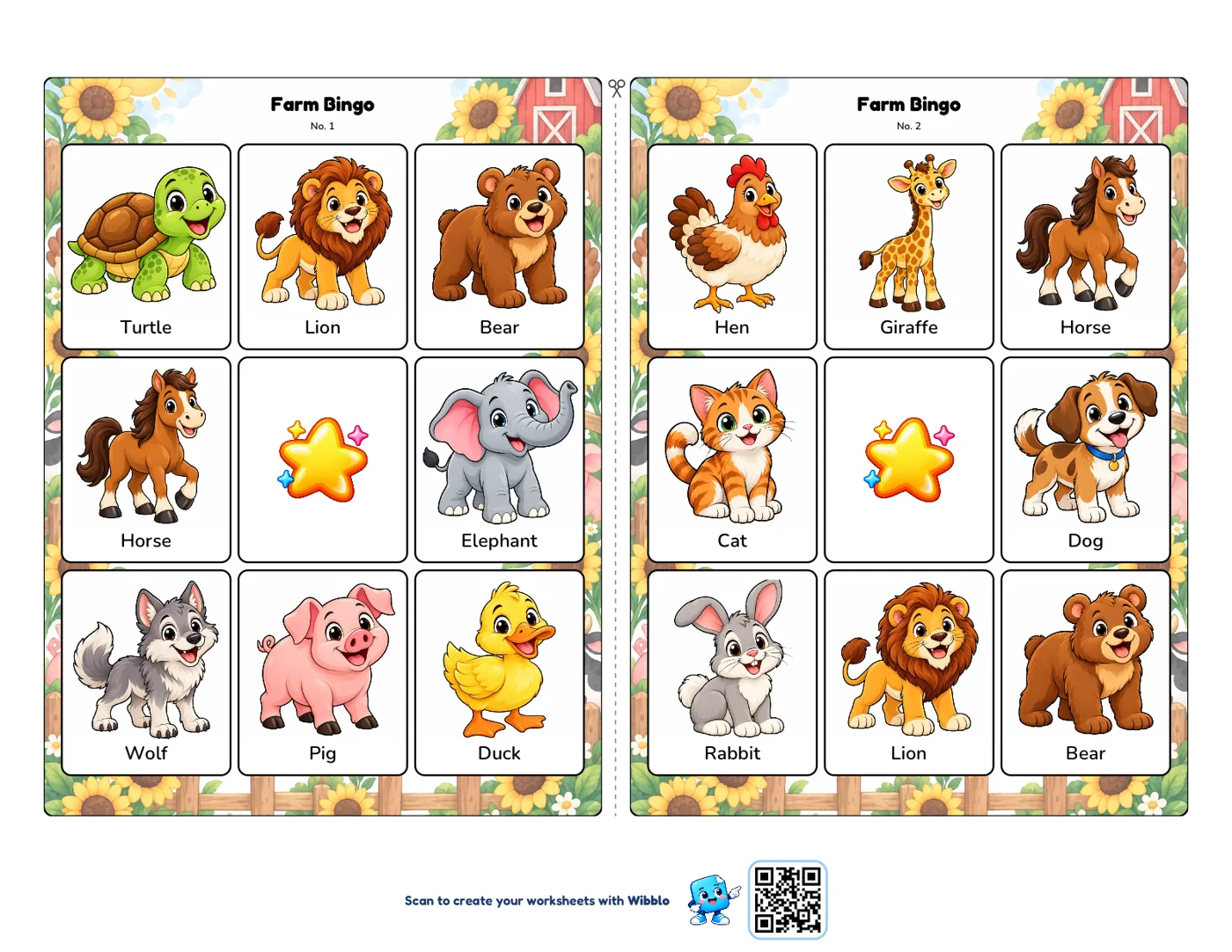
Bingo
Bingo cards with words, numbers, images or questions
-
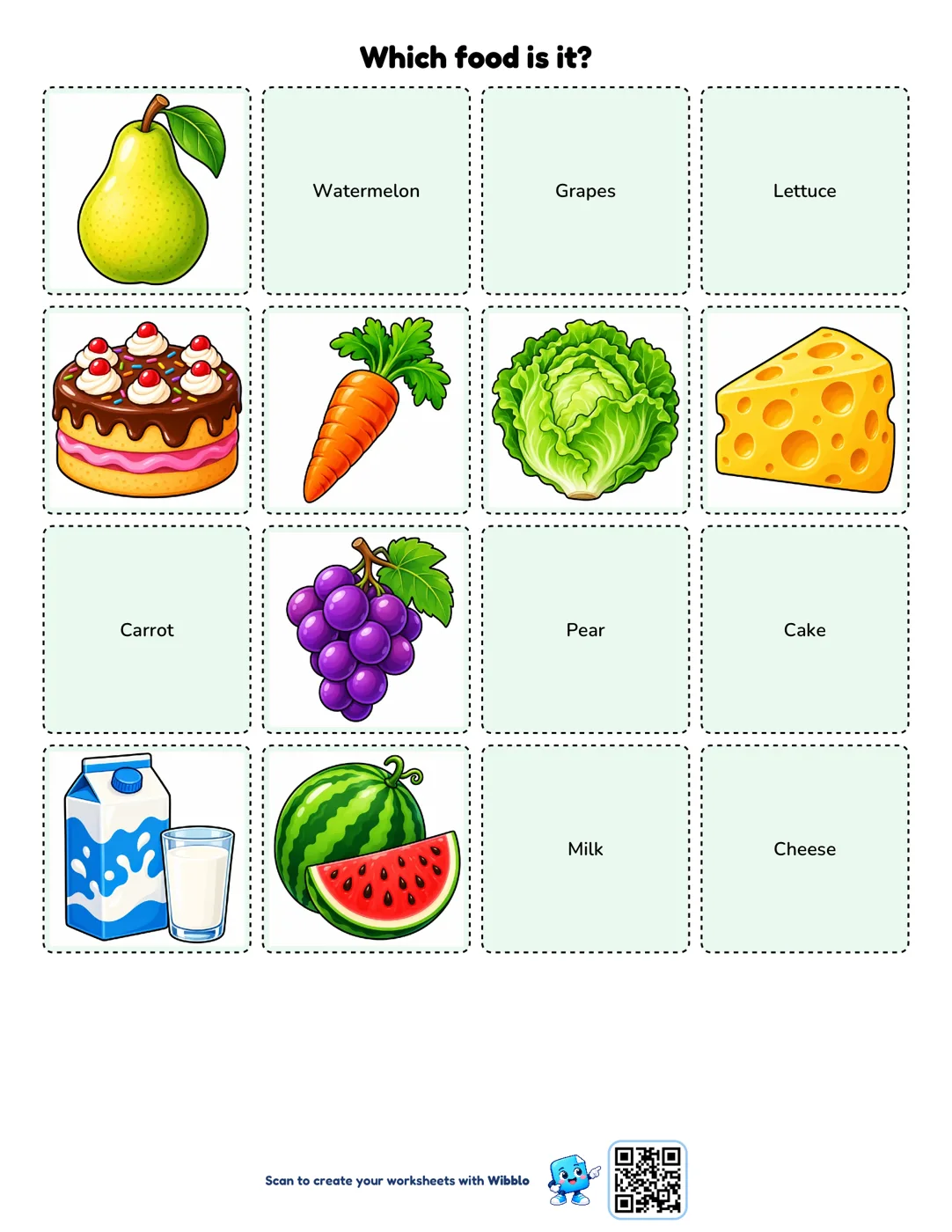
Pairs Game
Pairs games to print and cut out, with images, words or questions
-
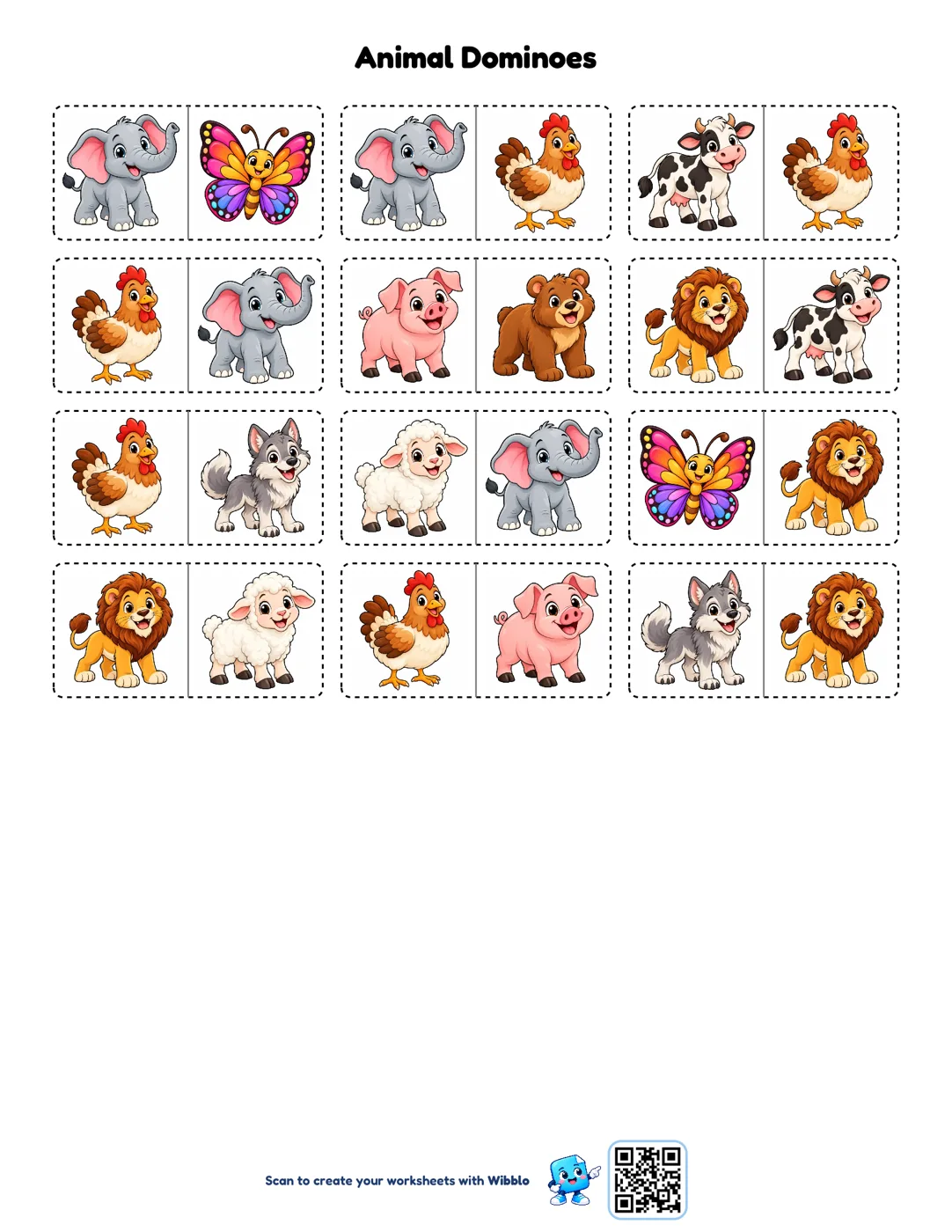
Educational Domino
Domino tiles to chain together, with images, words or questions
Activities
-
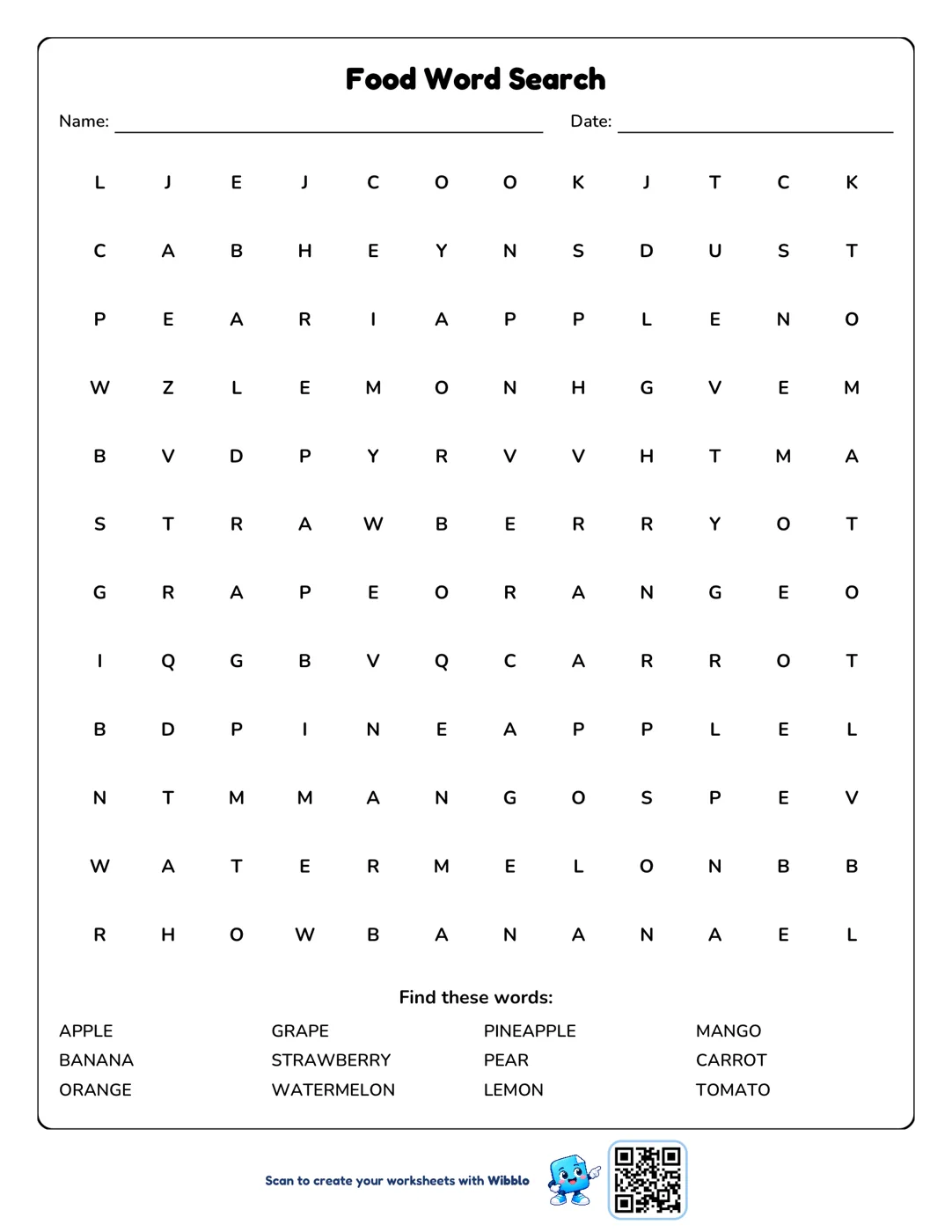
Word Search
Word searches with the words you choose
-
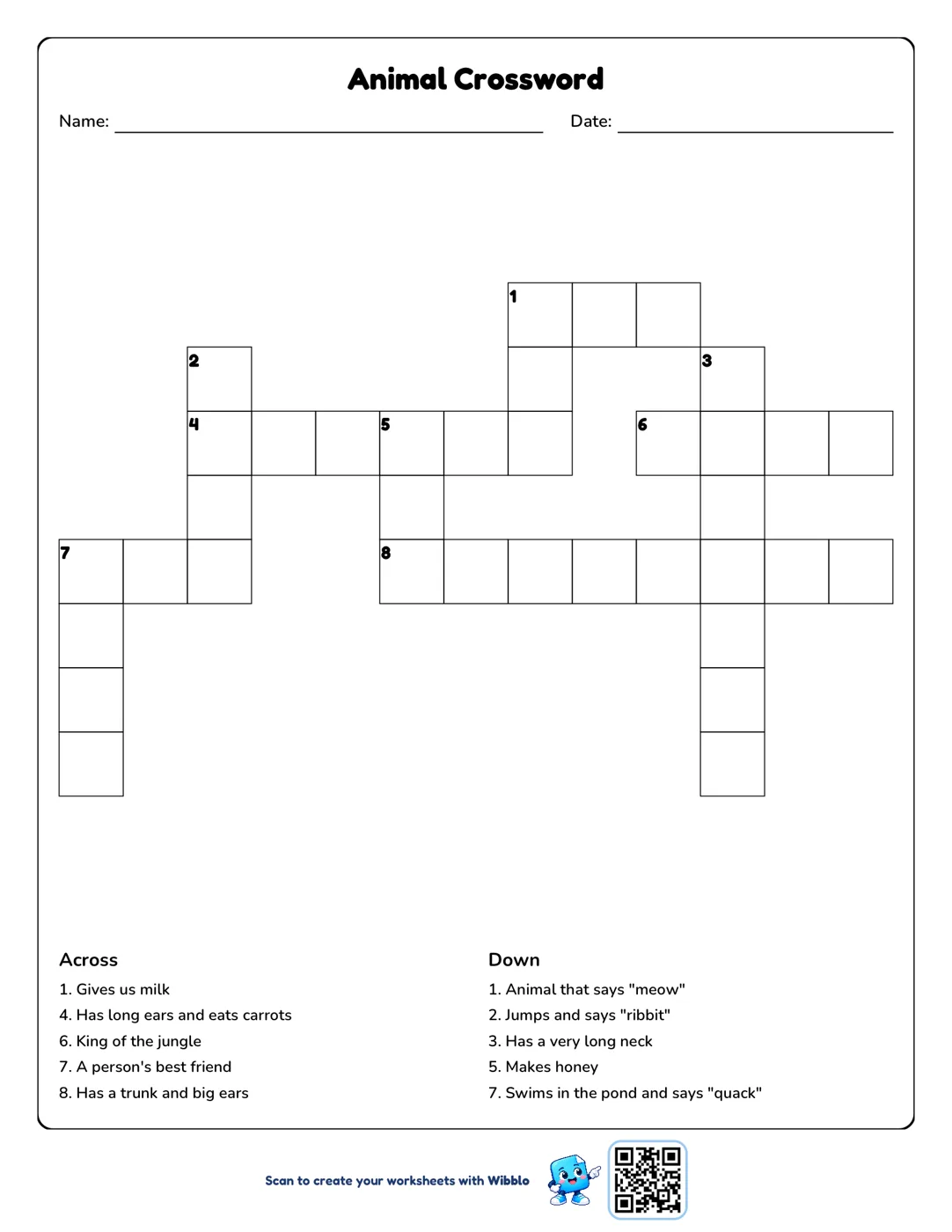
Crossword
Crosswords with the words and clues you define
-
Matching
Match each item in one column with its partner in the other
-
Flashcards
Cards to memorize words with their definition or translation
-
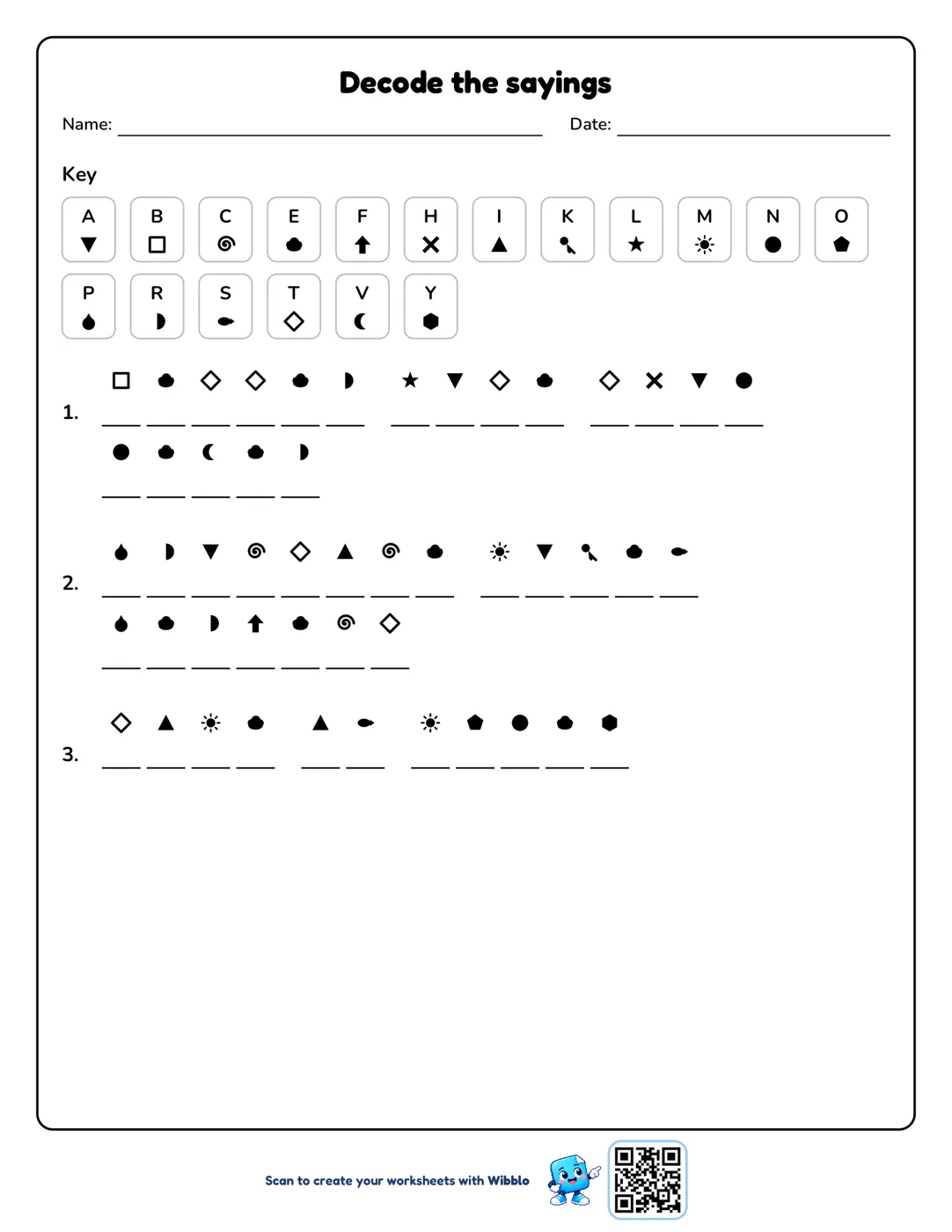
Secret Code
Coded messages using symbols, numbers or math operations to decode
-
Answer Path
Multiple-choice step paths to solve in order
Math
-
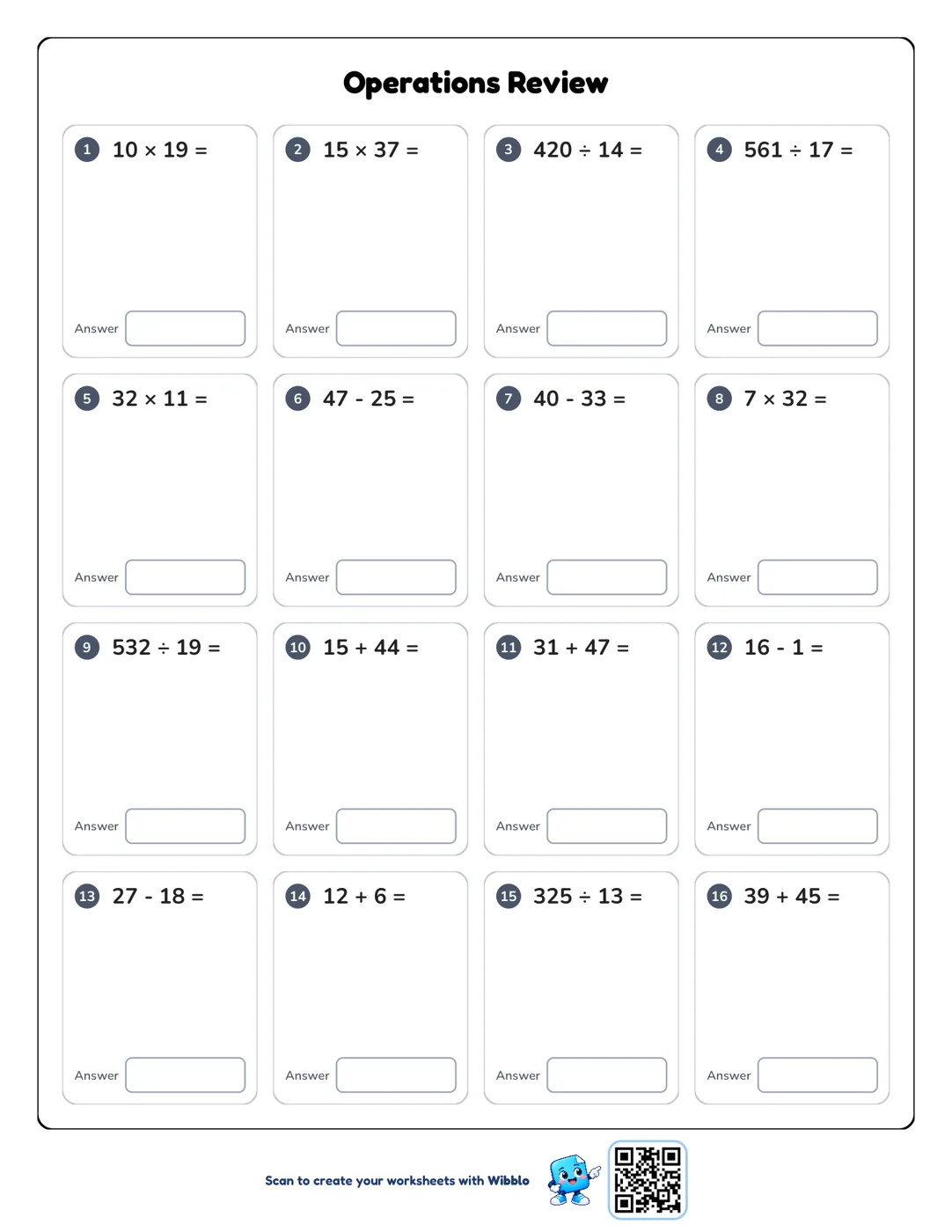
Math Worksheet
Practice sheets with addition, subtraction, multiplication and division
-
Color By Solving
Templates to color in by solving math exercises
-
Sudoku
4×4 or 9×9 sudoku boards with three difficulty levels
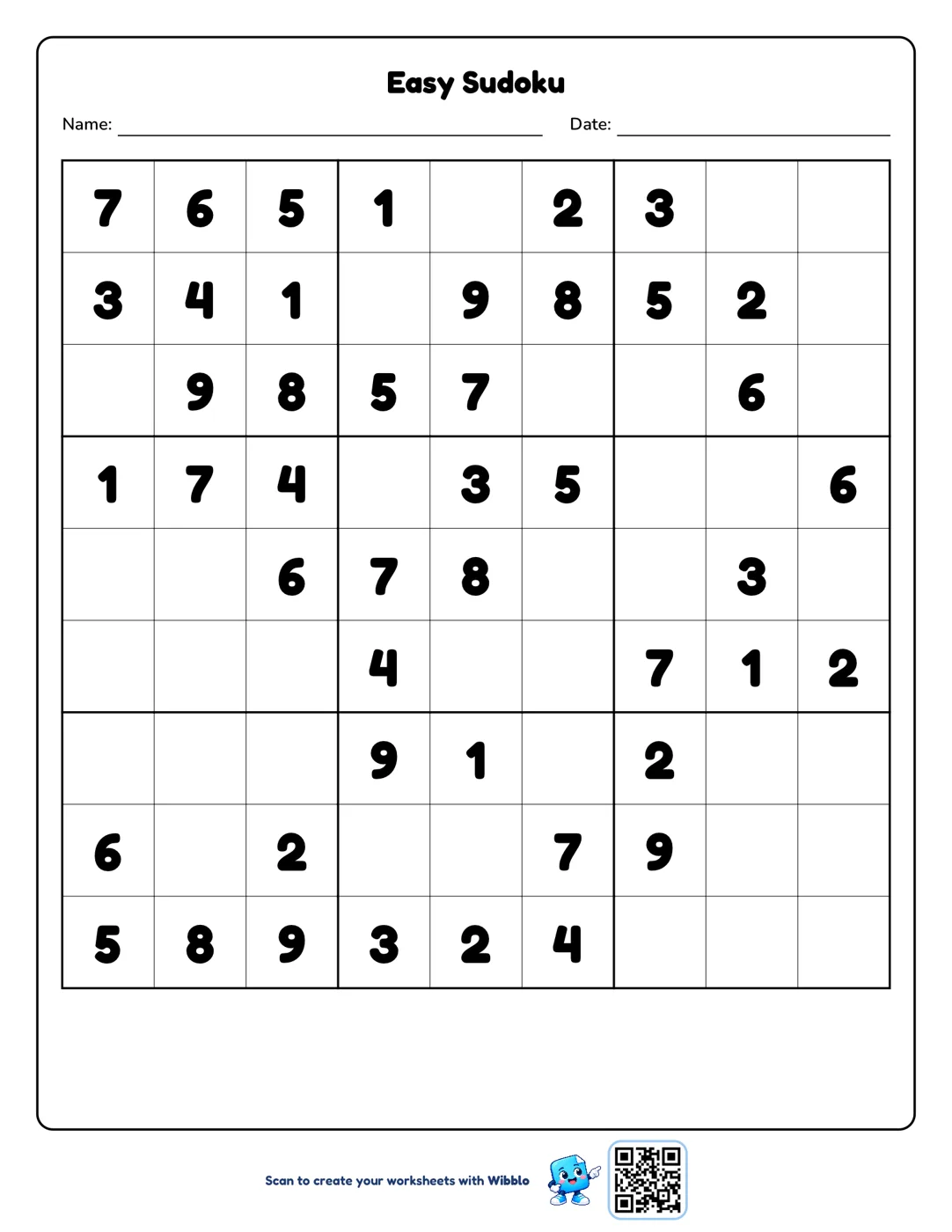
Real worksheets made with Wibblo
This is how they come out: ready to print. Tap one to see it larger.
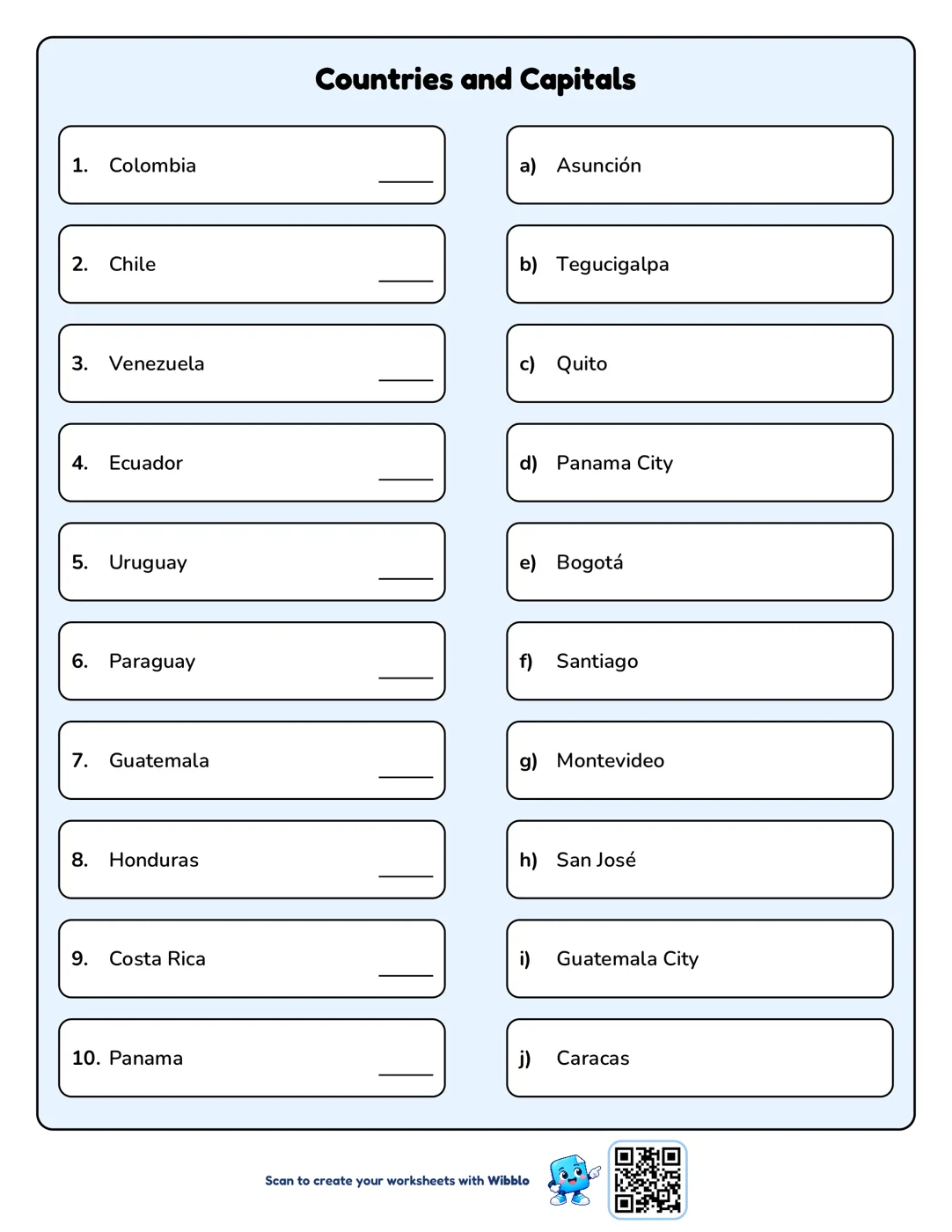
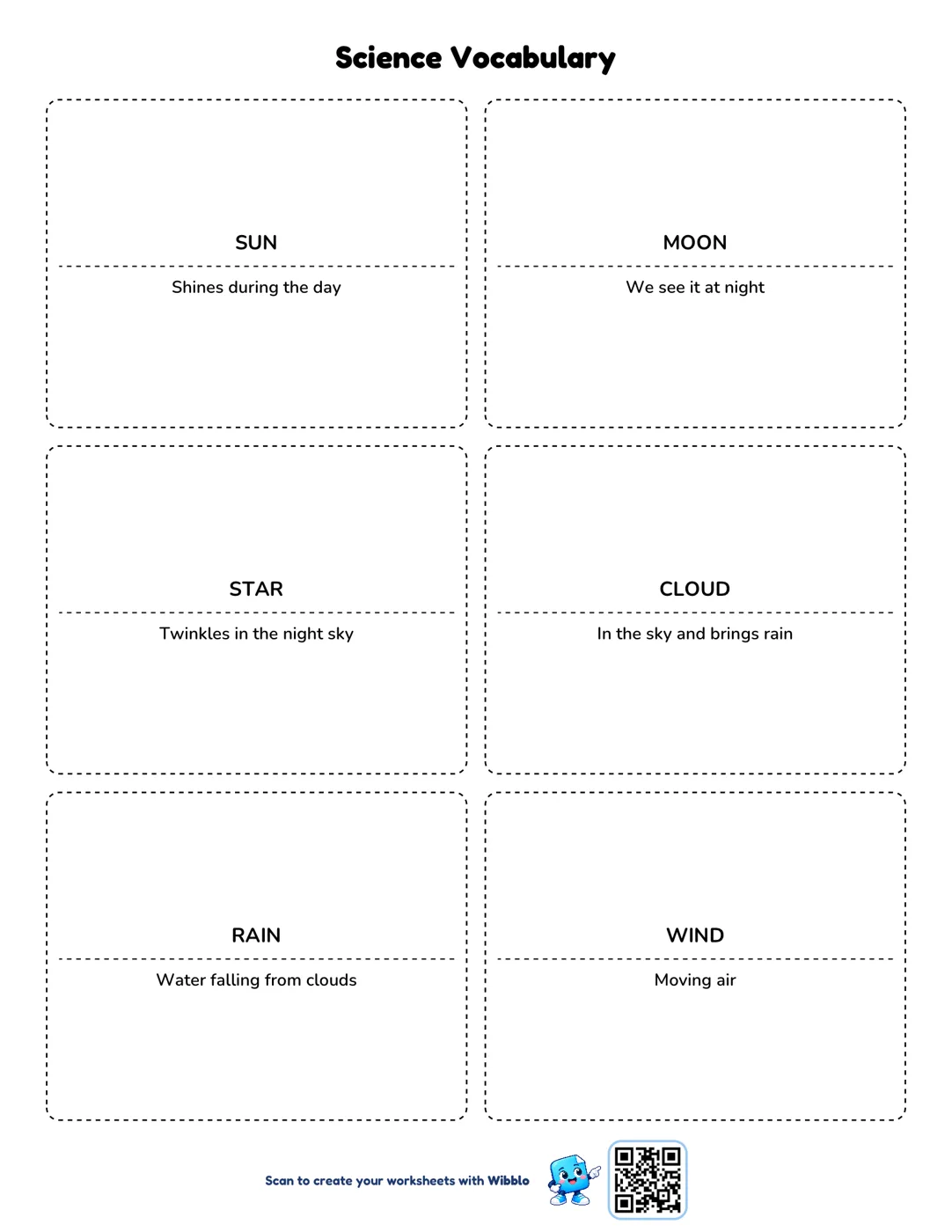
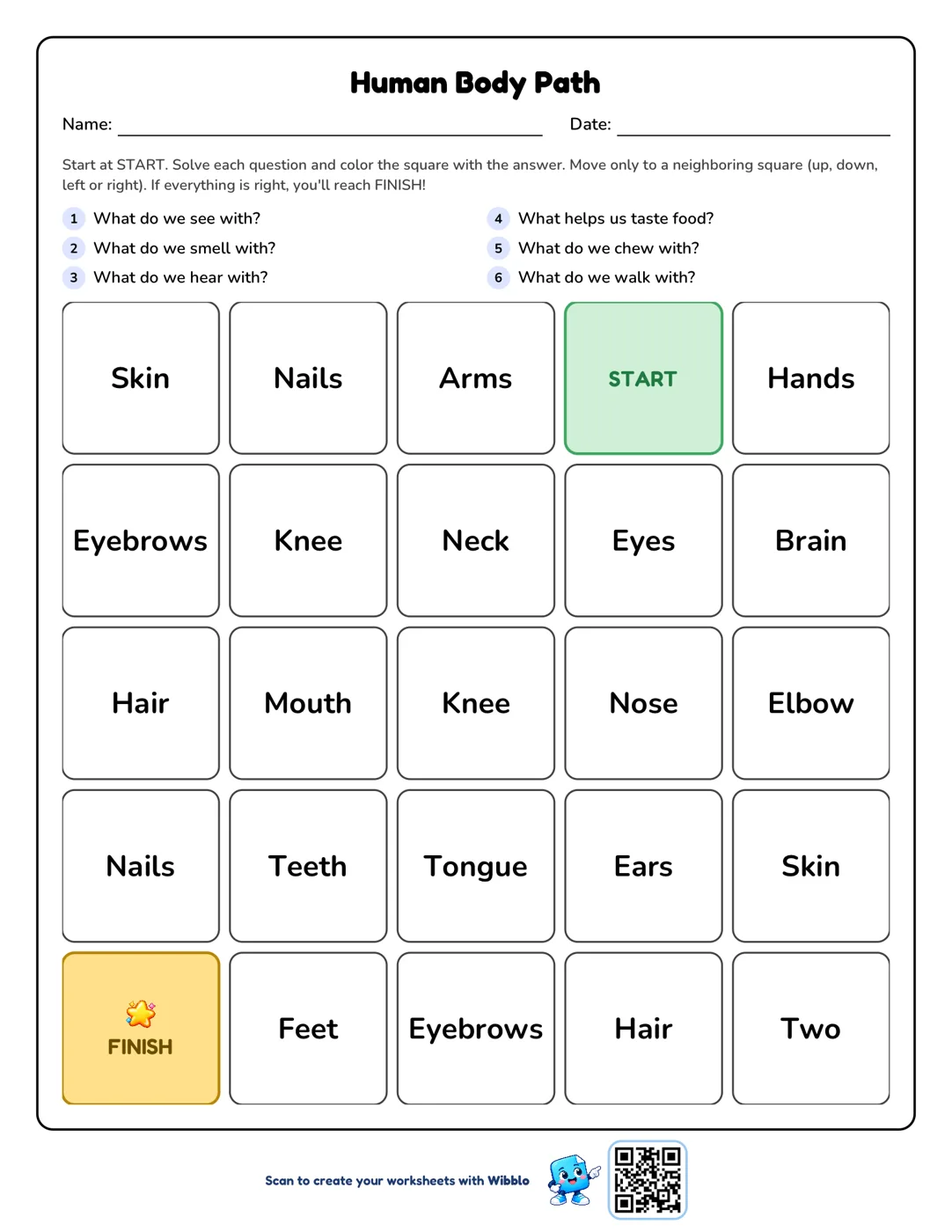
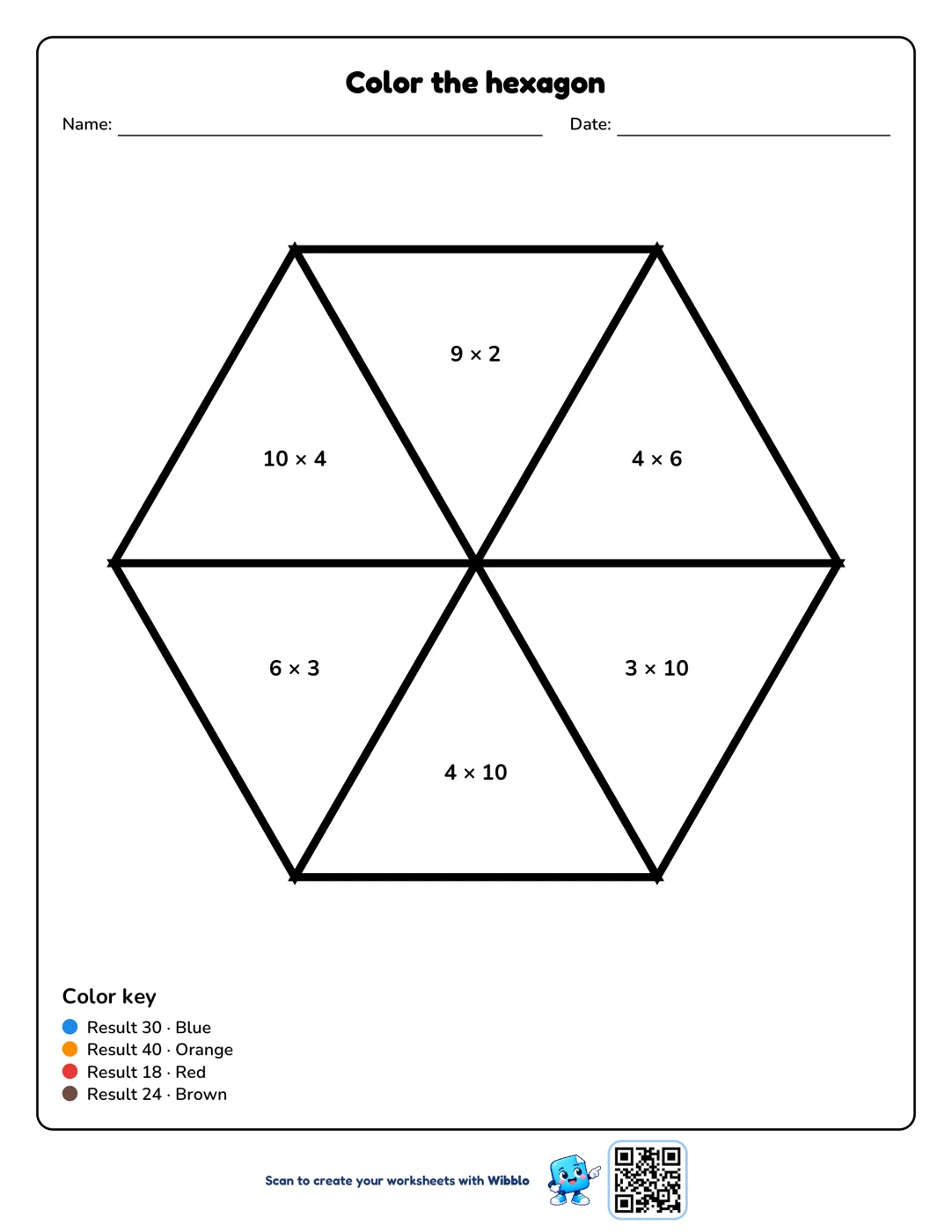
How it works
- 1
Pick an activity
Bingo, word search, crossword, math and more.
- 2
Type your words or use ready-made content
Add your own words, questions or numbers, or pick a ready-made topic.
- 3
Export to PDF and print
Check the preview, export the worksheet and share it or print it.
Tutorials
Step by step, with screenshots of the app.
How to make a bingo
See the steps with screenshots
-
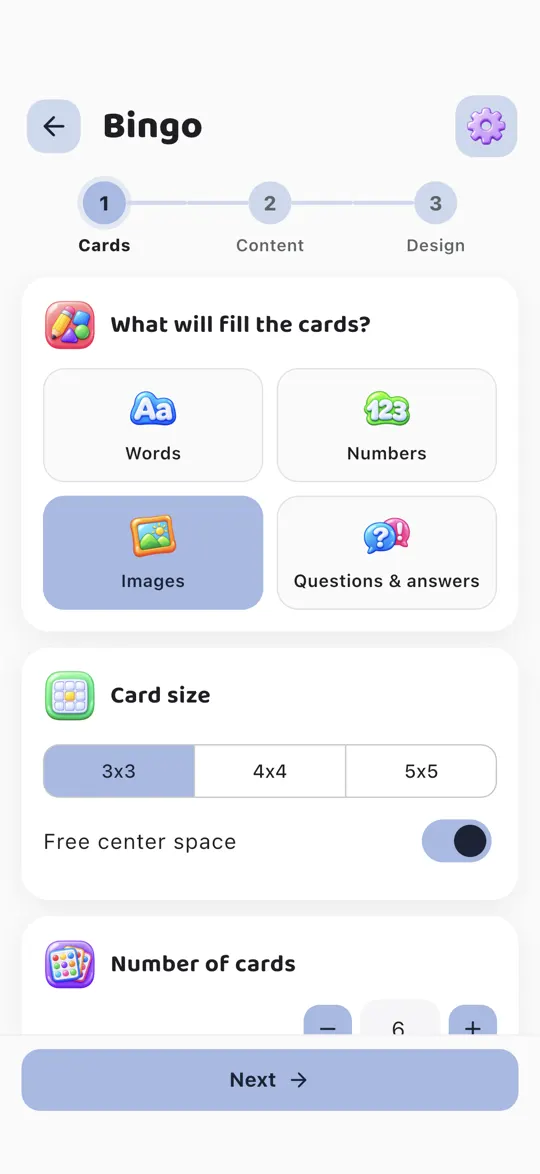
Step 1. Choose what fills the cards (words, numbers, images or questions), their size and how many you want.
-
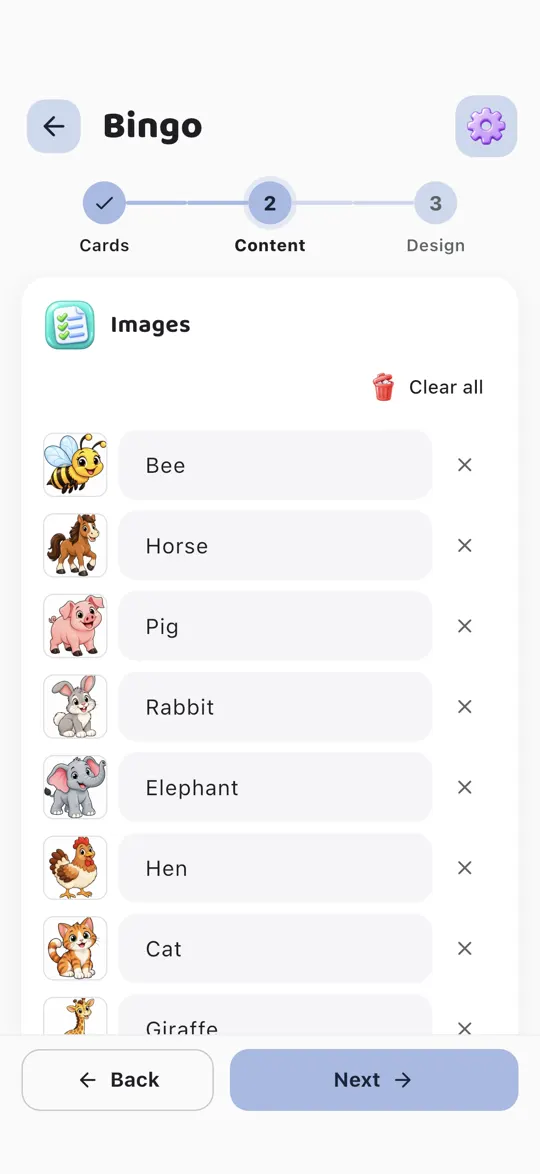
Step 2. Add the content: type your words or pick images from the image bank. You can also use your own photos.
-
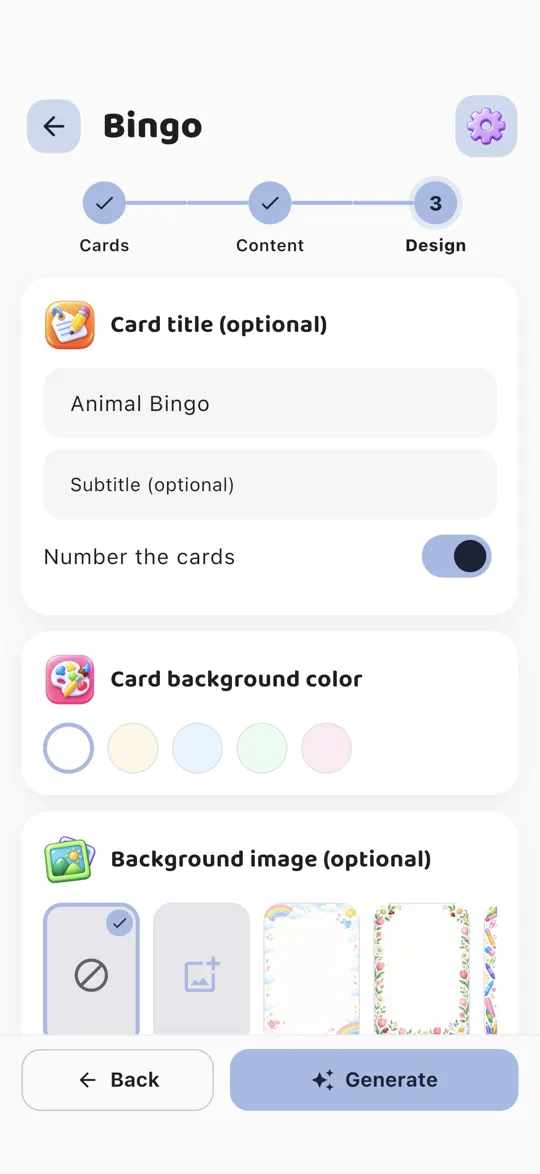
Step 3. Give it a title and, if you like, a background color or image.
-
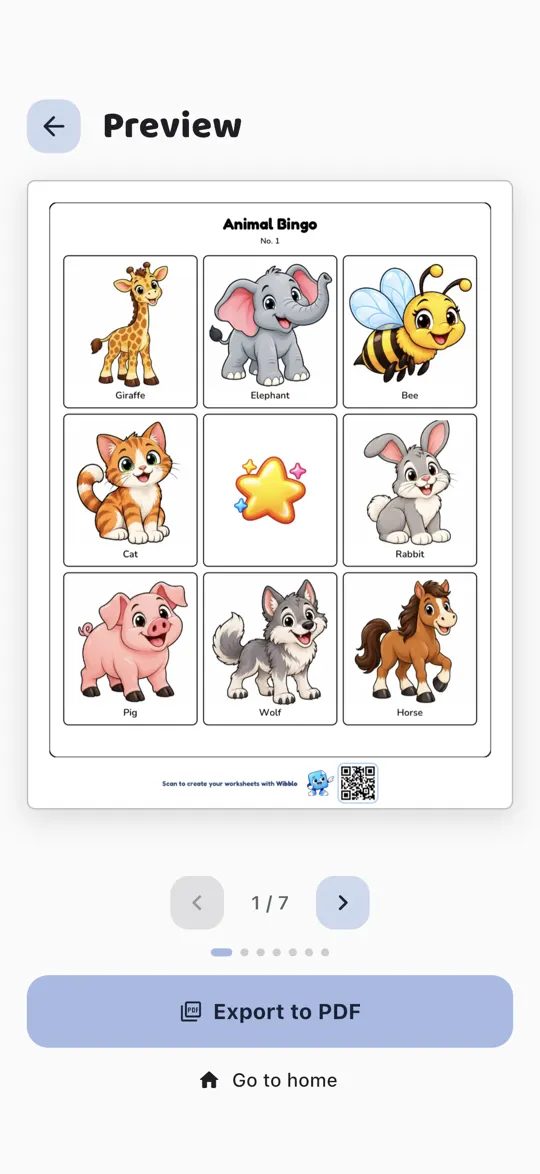
Step 4. Tap Generate, check the preview and export the cards to PDF.
How to make a word search
See the steps with screenshots
-
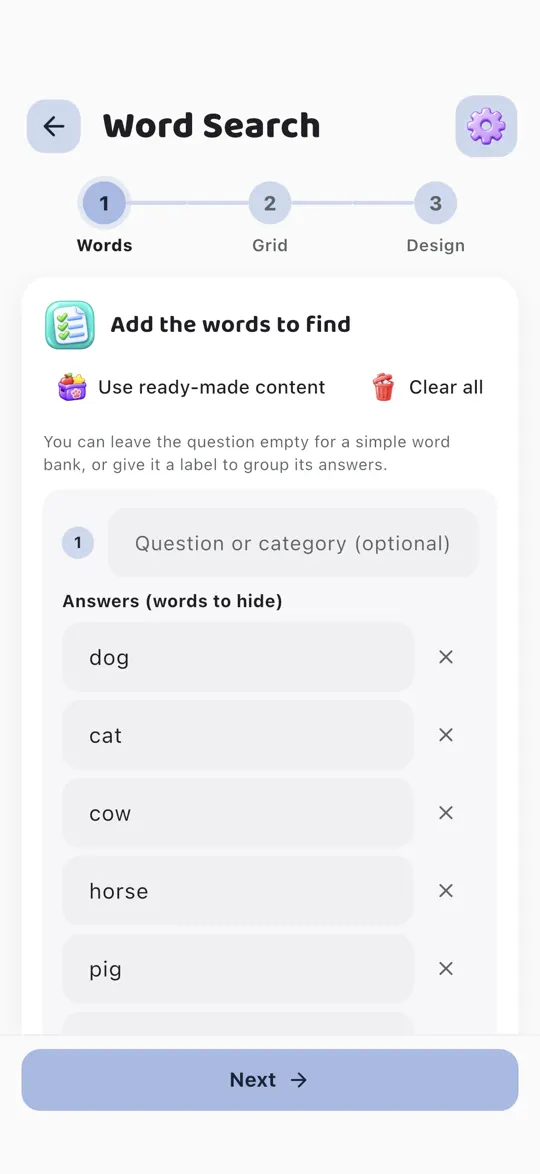
Step 1. Type the words to find or tap “Use ready-made content”. You can group them under a question or category.
-
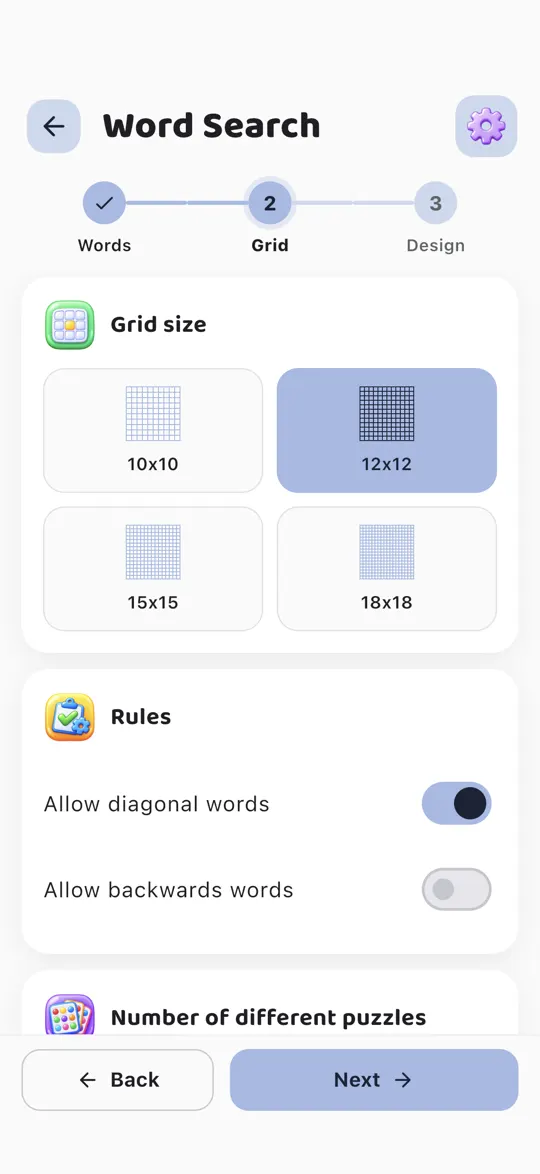
Step 2. Choose the grid size and whether words can go diagonally or backwards.
-
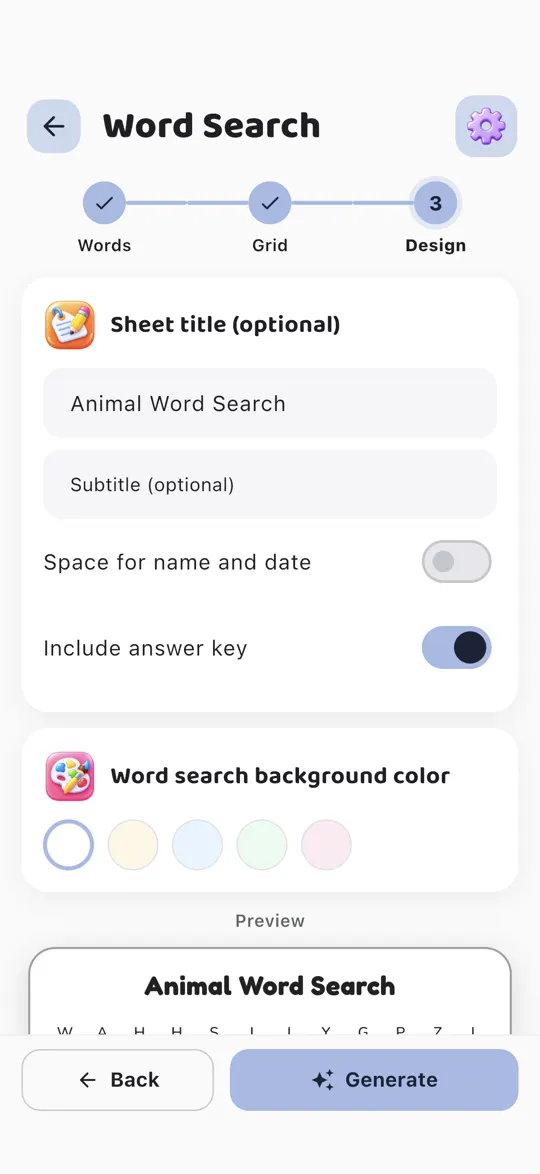
Step 3. Give it a title and a color, and decide whether to include the answer key.
-
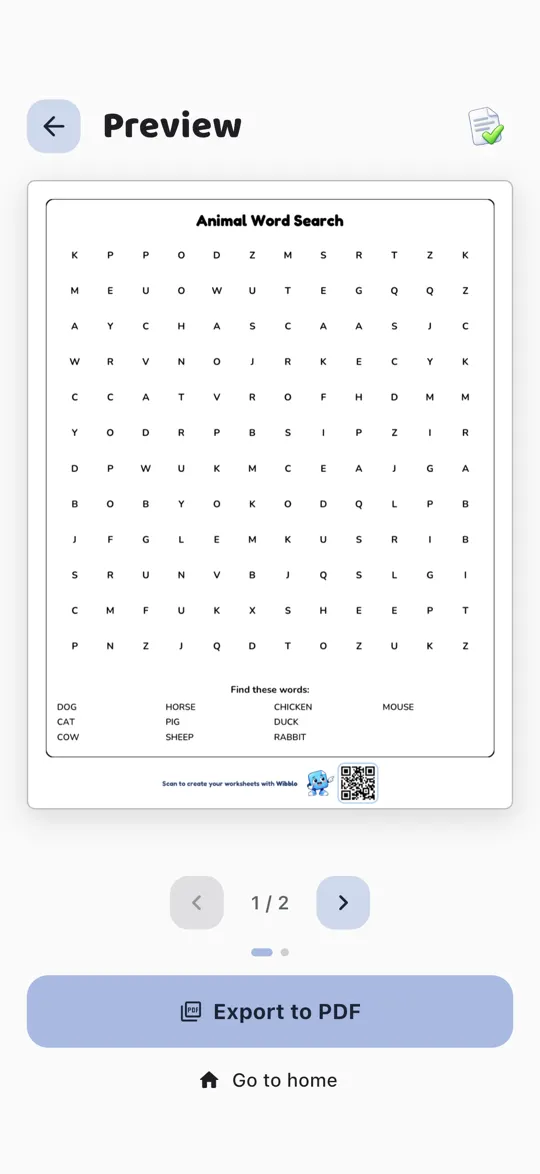
Step 4. Tap Generate, check the preview and export to PDF.
How to make a crossword
See the steps with screenshots
-
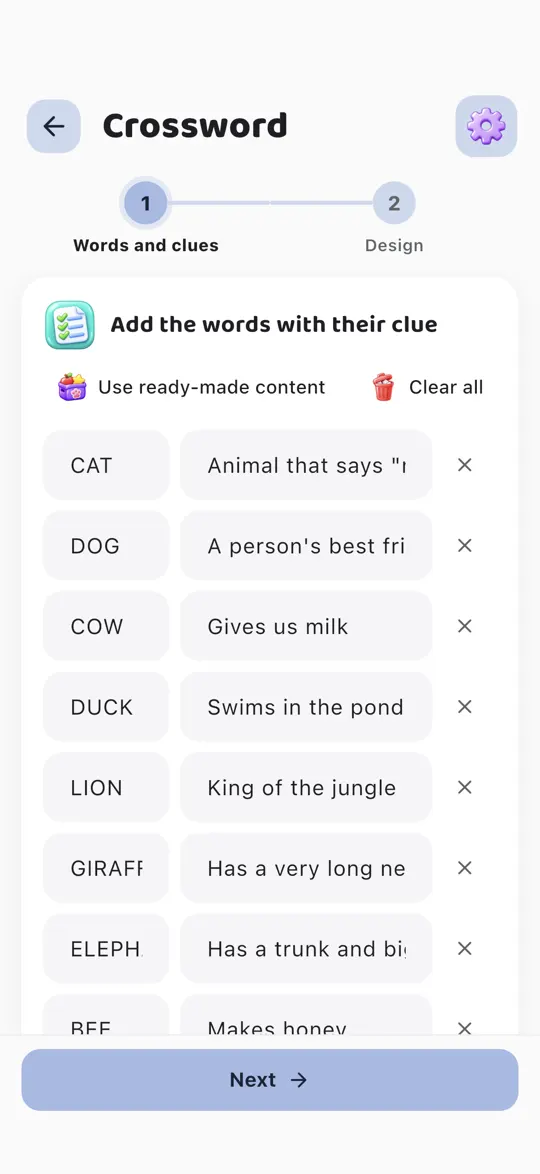
Step 1. Type each word with its clue, or tap “Use ready-made content”.
-
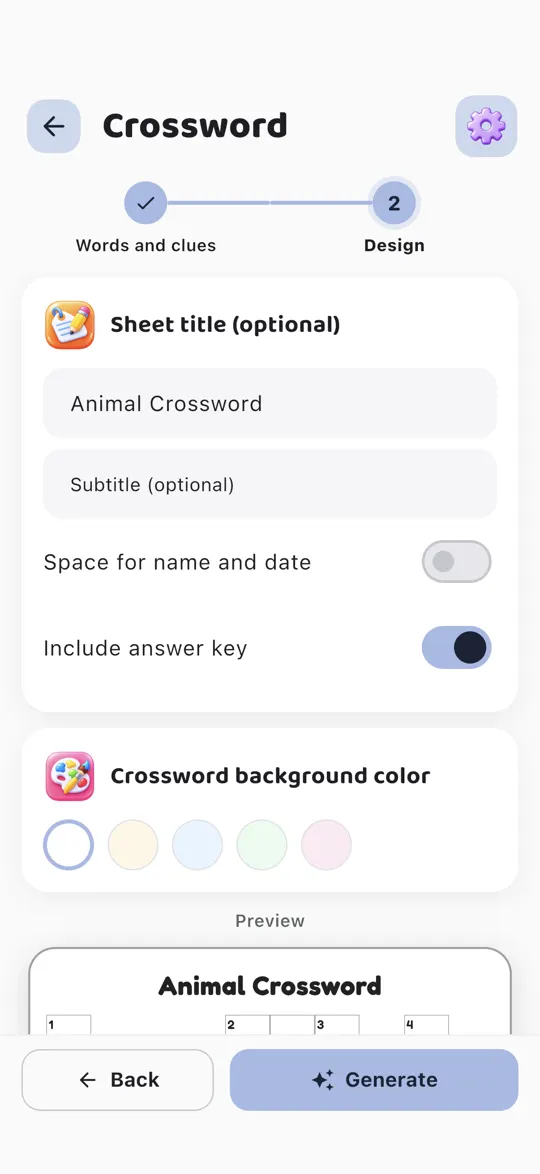
Step 2. Give it a title and a color, and decide whether to include the answer key.
-
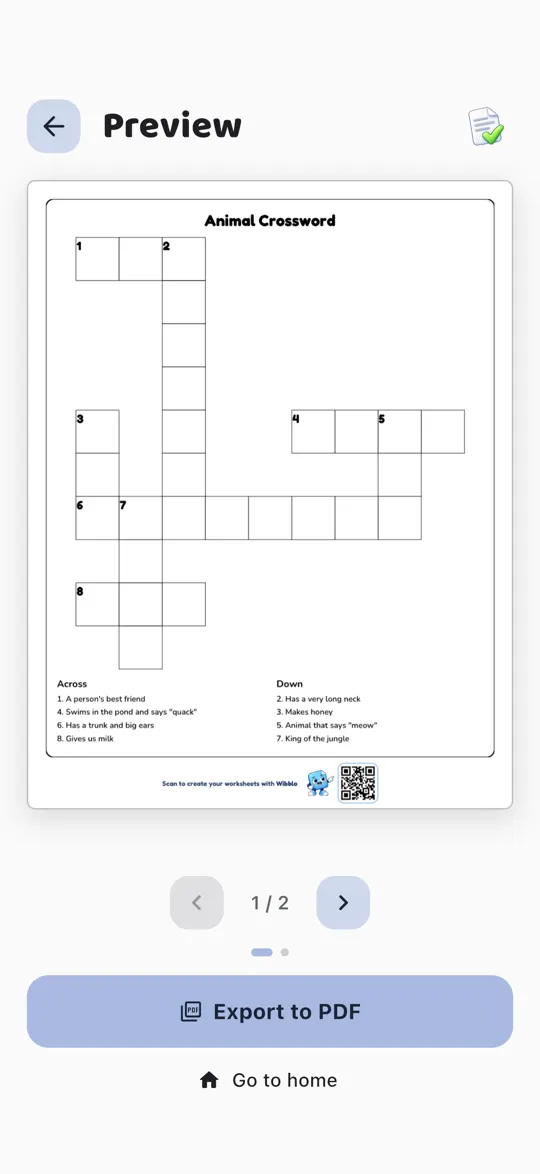
Step 3. Tap Generate: Wibblo crosses the words for you. Check the preview and export to PDF.
How to make a math worksheet
See the steps with screenshots
-
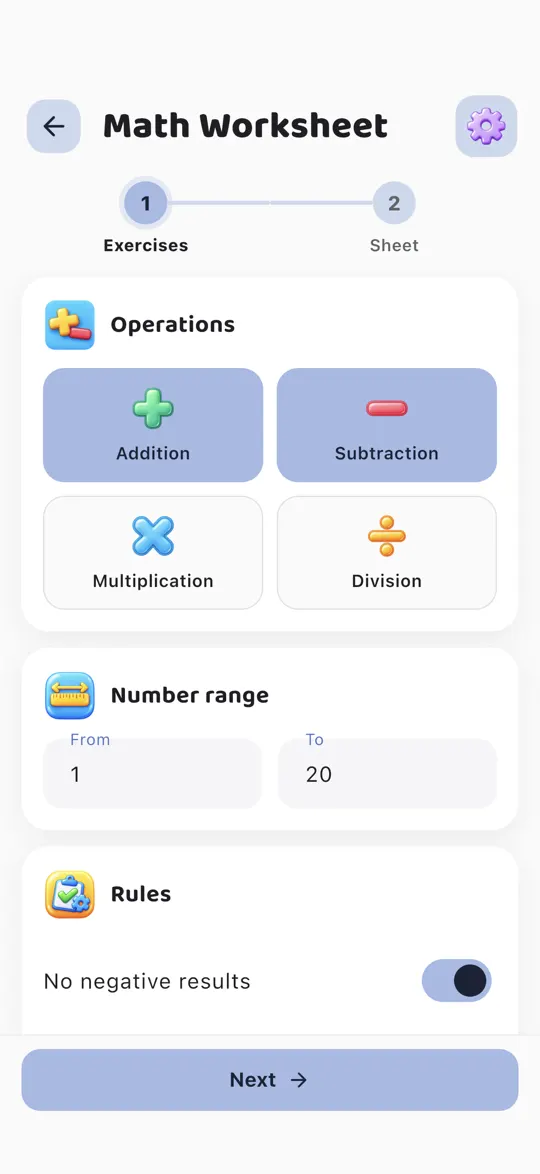
Step 1. Choose the operations, the number range and the rules, for example no negative results.
-
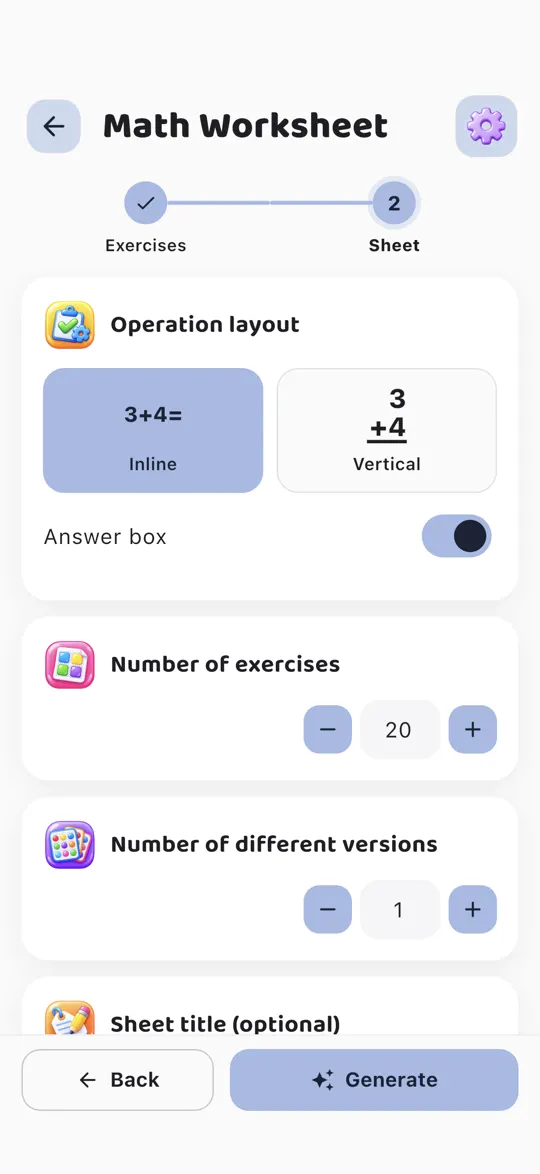
Step 2. Choose the layout (inline or vertical), the number of exercises and of different versions.
-
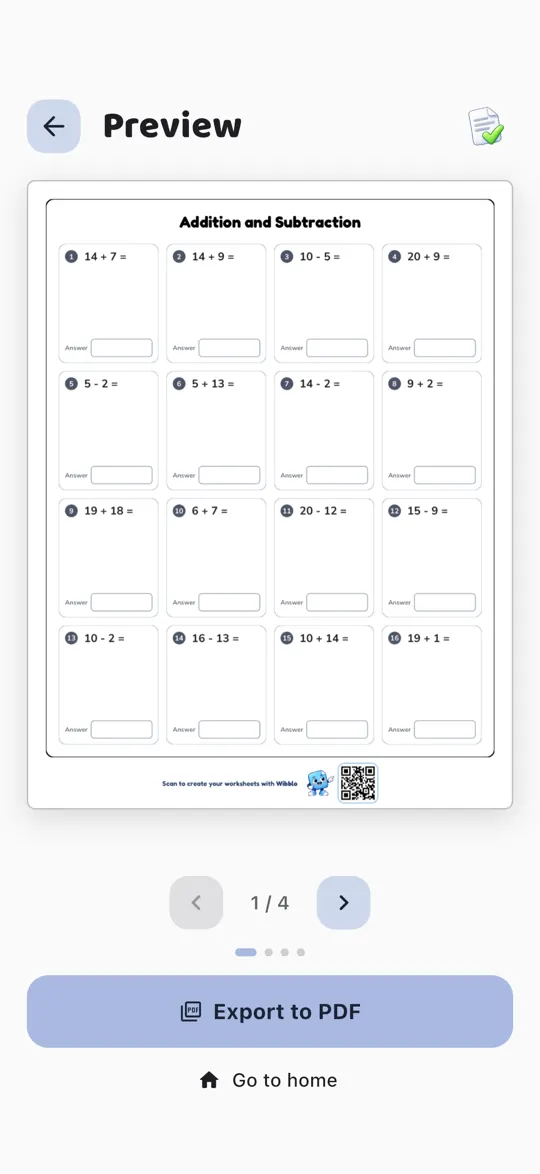
Step 3. Tap Generate, check the preview and its answer key, and export to PDF.
How to make a secret code
See the steps with screenshots
-
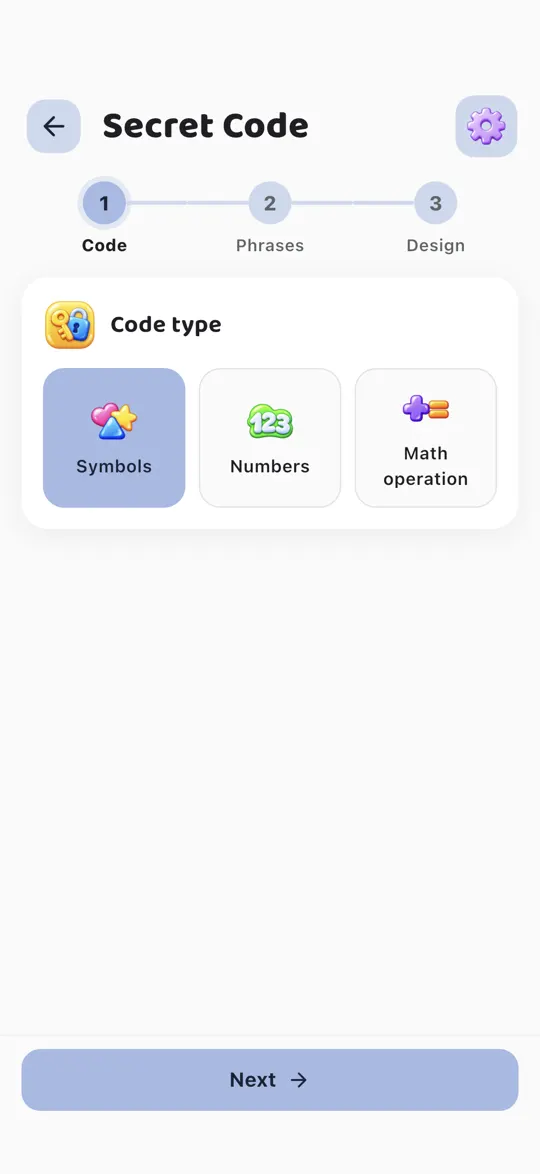
Step 1. Choose the type of code: symbols, numbers or math operations.
-
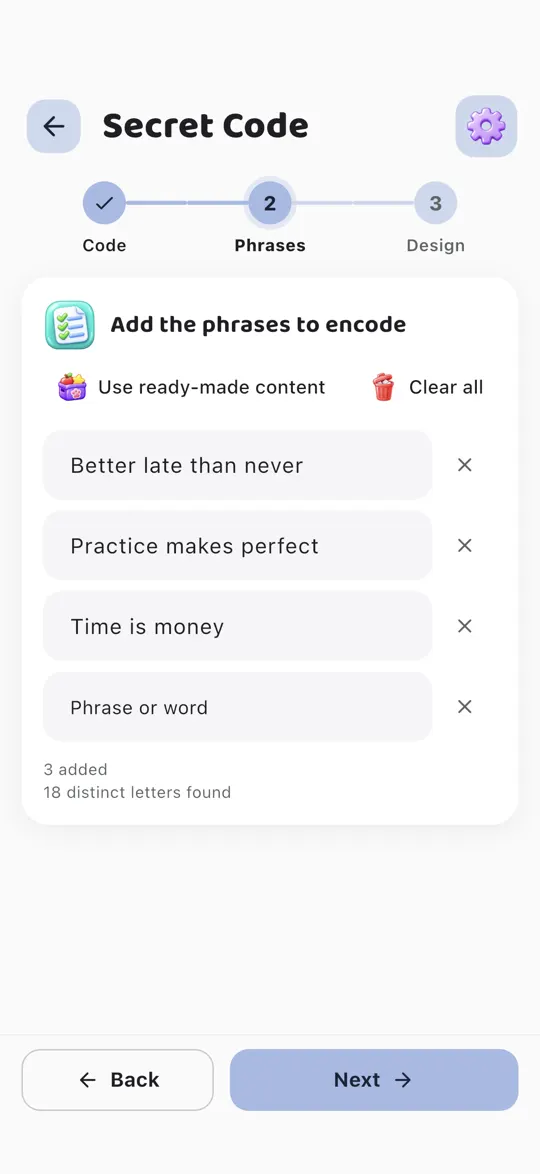
Step 2. Type the phrases to encode or tap “Use ready-made content” (sayings, for example).
-
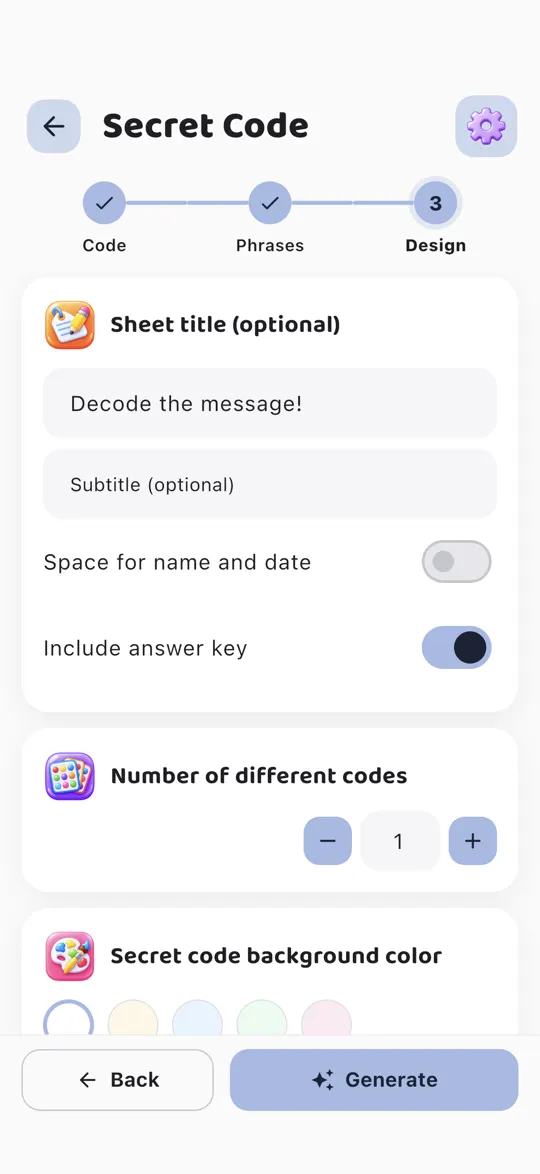
Step 3. Give it a title and choose how many different codes you want.
-
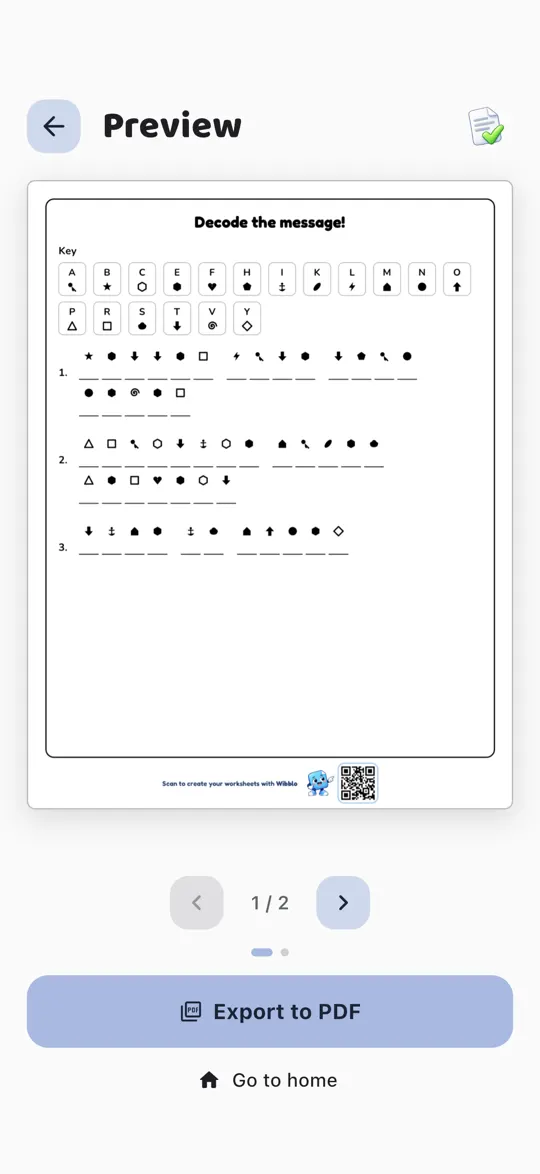
Step 4. Tap Generate, check the preview and export to PDF.
Free and Pro
Wibblo is free to download. Pro unlocks everything. The price of Pro depends on your country and your store, and you see it in the app before you subscribe.
Free
- All 12 activities
- 5 worksheets a week, with a watermark
- Some backgrounds, image banks and ready-made topics
- Your last 10 worksheets saved in “My worksheets”
 Wibblo Pro
- Unlimited worksheets
- PDFs without a watermark, with the option to hide the QR footer
- All backgrounds and app color themes
- All image banks and all ready-made content
- All your worksheets saved in “My worksheets”
Frequently asked questions
How do I print double-sided?
Some worksheets have a back side: bingo cards with a decorative back, double-sided flashcards and pairs or domino cards with backs. Turn on double-sided printing on your printer. For portrait pages, flip on the long edge; for landscape pages (bingo with 2 cards per page), flip on the short edge. If your printer can't print double-sided, print the odd pages first, put the paper back in and then print the even pages.
What is the QR code at the bottom of the worksheets?
It leads to this page, so anyone who gets a worksheet knows how it was made and can download Wibblo. With Wibblo Pro you can hide the footer in Settings.
How do I cancel my subscription?
On iPhone or iPad: Settings → your name → Subscriptions → Wibblo Pro. On Android: Google Play → your profile → Payments & subscriptions → Subscriptions. You can also get there from the app, on the Wibblo Pro screen → “Manage subscription”. Pro stays active until the end of the period you already paid for.
How do I restore my purchases?
Open the Wibblo Pro screen and tap “Restore purchases”, using the same Apple or Google account you bought with. The app also checks automatically every time you open it.
Which languages is Wibblo in?
Spanish, English, French and Portuguese. The first time it uses your phone's language, and you can change it anytime in Settings. Ready-made content is available in each language too.
Do I need an account or internet?
No. Wibblo doesn't ask for an account and works offline, except to buy or restore Pro. Your worksheets are saved only on your phone.

Make your first worksheet today
Download Wibblo for free and try all 12 activities.